

You know, when you get a new iPhone and everything seems super exciting? Well, I was all set up with mine recently, but I realized- wait, what about my Apple Watch? I thought it would pair automatically, but it wasn’t that simple.

I spoke with my brother about it, and he told me that there are actually a few extra steps that need to be followed to pair your Apple Watch to a new phone to make sure you don’t lose your health data, settings, or activity history on your watch.
If you’re planning to switch to a new iPhone and want to keep your Apple Watch data safe, let me guide you through the steps I followed. It’s easier than it sounds once you know the right way to do it.
What You Will Need
Before you start setting up your new iPhone, ensure you have a few things ready.
Decode the Decor
The Smart Jewelry Revolution — a practical guide to wearable tech.
- Have your old iPhone ready.
- Keep your Apple Watch nearby.
- Make sure you have your new iPhone on hand.
- Ensure you have either an iCloud backup of your old iPhone or access to both old and new iPhones for a direct transfer.
- Confirm that both devices are charged and connected to Wi-Fi.
First rule: Back Up Your Apple Watch Data
There is one thing that I’ll suggest, and that is, before you do anything with your Apple Watch, make sure to back up your old iPhone. That is because Apple Watch data is included in the iPhone backup- it does not get backed up directly from the watch itself.
Here is how to back up your iPhone:
iCloud Backup:


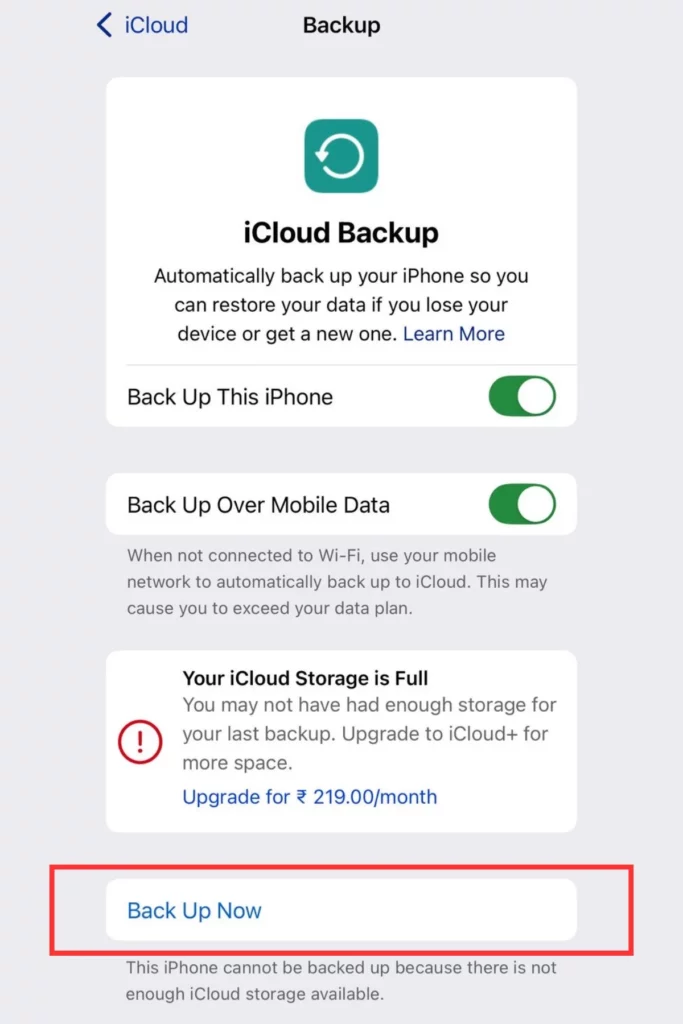
- Go to Settings
- Click on your Name
- Scroll and find iCloud
- Then click on iCloud backup
- Tap Back Up Now
Make sure the backup finishes before setting up your new iPhone.
Set Up Your New iPhone First
Once you have completed your backup, it’s time to set up your new phone:
- Turn on your new iPhone and follow the on-screen instructions.
- When prompted, choose to Restore From iCloud Backup.
- Sign in with your Apple ID to begin restoring your app settings and data.
Important tip: Do not pair your Apple Watch to the new iPhone until after your phone is fully restored.
Time To Pair The Apple Watch
Once your new iPhone is set up and restored:
- Open the Watch app on the new iPhone.
- Make sure your Apple Watch is powered on and nearby.
- Follow the prompt to pair your Apple Watch with the new iPhone.
- When asked, choose to Restore From Backup instead of setting up as new.
- Complete the setup and allow time for syncing. It can take a little while, and it depends on how much data you have.
That’s it! Your Apple Watch should not be connected to your new iPhone with all your old data intact.
No Old phone? No Problem
If you no longer have access to your old iPhone, or you forgot to back it up, don’t panic. You are not totally out of luck. You still have options. What you can do is:
- On your Apple Watch, go to Settings.
- Scroll down and tap on General.
- Find and tap on Reset.
- Then click on ‘Erase All Content and Settings’.
- This will unpair the watch and wipe it clean.
- On your new iPhone, open the Watch app and follow the steps to pair it as a new Apple Watch.
Important: If you did not have a recent iCloud backup of your old phone, your watch data will likely be lost.
Pro Tips And Troubleshooting
Here are some tips that I’d like to share with you so that you don’t have to worry while you are connecting your Apple Watch to your new phone.
- Make sure to keep your Apple Watch and iPhone charged and in close proximity to each other during setup.
- Always check that both devices are signed in with the same Apple ID. That is key to a smooth process.
- If your Apple Watch won’t pair, try restarting both devices. This usually does the trick.
- If you run into errors or delays, check your Wi-Fi connection and be patient. It might just be syncing quietly in the background.
Wrap Up
Pairing your Apple Watch with a new iPhone isn’t rocket science. It’s just a tad tedious. The real secret sauce? Back up your old iPhone before you touch anything. Please don’t skip it unless you don’t want any of our old watch data.
Do it right, and your Apple Watch will slide into your new phone’s life like nothing ever happened. Follow the steps carefully, and you’ll be back to tracking your workout, checking messages, and closing your rings in no time.
Also read:
- I Finally Fixed the Ghost Touch Problem on my Apple Watch
- How to Turn On Sleep Focus On Apple Watch
- Is Apple Watch Heart Rate Monitoring Spot-On?
- Is My Apple Watch Draining My iPhone Battery
- Not All Apple Watches Work With Every iPhone – Check Compatibility Here
FAQs
Decode the Decor
The Smart Jewelry Revolution
A practical guide to wearable tech's future — delivered straight to your inbox.
Author
