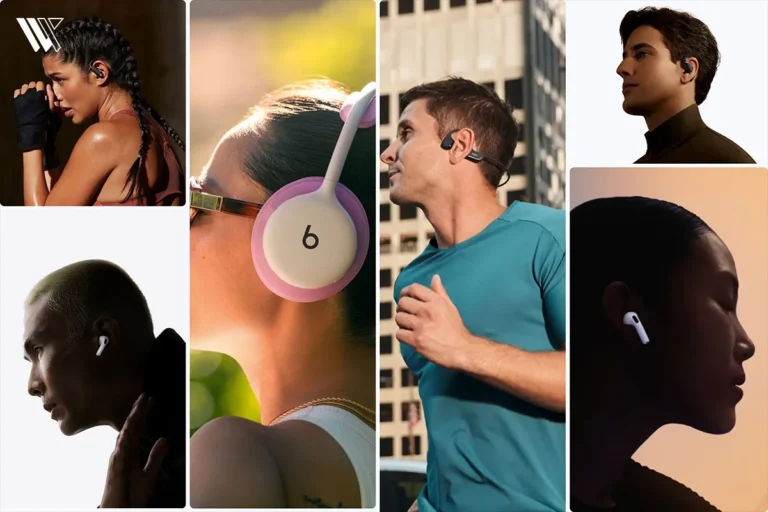
 Smart AudioOpen-Ear vs Bone Conduction vs Earbuds vs Over-Ear: Which Fitness Headphones Should You Choose?
How To Check AirPods Battery On Android?
Learn how to check your AirPods battery on Android devices with easy methods and apps for accurate battery monitoring.
Independently tested. We never accept payment for reviews.How we test

What’s inside8 sections · 4 min read
You know, I have been using AirPods for a while now, and I really love how sleek they look and how easy they are to pair, especially if you are in the Apple ecosystem.
One day, my mother asked for my AirPods to pair with her Android phone. Everything went well until she couldn’t see the battery levels anywhere.
Don’t be startled, you do see your AirPods battery on newer Android phones, but you still won’t see the AirPod case’s battery on your Android phone.
So I started looking for a way around it and found some free apps that let you check the battery of the case on any Android device.
Why Can’t You See the AirPods Battery on Android?#


When you pair AirPods with an iPhone, you get this really smooth pop-up that shows the battery levels for each earbud and the charging case. It is super convenient because it’s built right into iOS.
But with Android, it’s a different story. Android phones do not have that feature built in for older models. That is why your phone can’t show you the battery levels on its own. Newer Android phone, however, can still show you the battery level of the earbuds, but not for the case.
That’s where third-party apps come into play. They fill in the gap and let you see the battery status on your Android device.
How to Check AirPods Battery on Android: Use a Third-Party App#
To see your AirPods battery percentage on Android, you are going to need a third-party app that can actually read and show the Bluetooth battery data.
Here are three of the best ones. I have come across:
AirBattery: It’s very simple, reliable, and works with most AirPods models.
CAPod: This one is open-source, comes with a handy widget, and gives detailed battery info.
MaterialPods: This app has a clean UI, supports dark mode, and offers various themes.
They all pretty much do the same thing, but for this guide, we will focus on MaterialPods.
Why Use MaterialPods?#
MaterialPods really brings a smooth, android-native experience for AirPods users. Here is what makes it stand out:
Modern Material UI: It has a clean design that feels right at home on Android 12 and newer.
Battery Pop-Ups: It automatically shows battery levels whenever you open your AirPods case.
In-Ear Detection Support: You get pop-ups when you put the earbuds in your ears (if your model supports it).
Customizable UI: You can pick colors, themes, pop-up styles, and even different icon sets.
Persistent Notifications: It keeps the battery status visible in your notification bar.
Supports Multiple Models: Works with AirPods 1st/2nd Gen, Pro, Pro 2, Max, and even a bunch of Beats products.
How to Use MaterialPods#
- Pair Your AirPods With Android
- Open your AirPods case.
- Go to Bluetooth Settings on your Android device.
- Select your AirPods from the list and connect.
- Download MaterialPods
- Search for MaterialPods on the Google Play Store.
- Install the app (the free version is usually sufficient for battery display).
- Set Up The App
- Open MaterialPods.
- Grant the following permissions when prompted:
- Notification Access (for pop-ups).
- Overlay Permission (to show battery Windows on top of apps).
- Choose your AirPods model from the list.
- Customize the UI (colors, pop-up size, animation, style, etc.).
- Check Your Battery
- Open your AirPods case or insert an earbud.
- You will see a pop-up with battery levels for each earbud and the case, if supported.
- Optionally, enable a persistent battery notification in settings for quick glances.
Pro Tips for The Best Experience#
For the best experience, I suggest:
- Disable Battery Optimization for MaterialPods:
- Go to Settings
- Scroll down and tap on Battery.
- Then click on Battery Optimization.
- Find MaterialPods, and set it to “Don’t Optimize”.
- Allow Background Activity, so it stays responsive.
- Use Dark Mode or change UI colors to match your theme.
What Works And What Doesn’t #
Works perfectly:
- Real-time battery pop-ups.
- Accurate display of individual earbuds.
- Sleek and responsive UI.
- In-ear detection (model-dependent).
- Works across Android versions and phone brands.
Limitations:
- No Siri or Apple-exclusive features.
- Battery data may not be 100% accurate for the case level on older AirPods.
- No firmware updates via Android (still need iPhone for that).
Wrap Up#
Still guessing your AirPods battery on Android? That’s so last year. With third-party apps, your AirPods finally get the VIP treatment they deserve, even if you are rocking an Android. And if you want the best earphones for Android, look no further!
Just don’t forget to turn off battery optimization; otherwise, your AirPods might ghost you when you least expect it. Go ahead, give it a whirl and enjoy that sweet, sweet peace of mind.
FAQs#
01Can you check the AirPods battery on Android without any apps?
Unfortunately, no. Android doesn’t natively support showing AirPods battery levels because Apple does not share that info outside its ecosystem. You will need a third-party app.
02Are third-party apps for checking AirPods battery safe?
Most apps like MaterialPods, CAPod, and AirBattery are safe and well-reviewed. Just make sure to download them from trusted sources like the Google Play Store.
03Do you need to keep the app open all the time to see battery levels?
No, these apps run in the background and show battery pop-ups and notifications as long as battery optimisation is disabled.
04Will these apps drain your phone’s battery faster?
Running any app in the background uses some battery, but these apps are designed to be lightweight. Battery optimisation helps them work better without a major impact on your battery life.
05How accurate are the battery readings from these third-party apps?
They are generally quite accurate because they read the Bluetooth data directly from your AirPods. However, slide delay or occasional mismatches can happen due to Bluetooth connection quirks.
06Will these apps work if your AirPods firmware is outdated?
It is best to keep your AirPods firmware updated to ensure compatibility and the best performance with these apps.
07Do these apps support Android tablets or Chromebooks?
Most should work on Android tablets since they run the same OS. Chromebook support depends on whether your device supports Android apps.
 LJ
Written by
With a practical, real-world approach to testing, Lokesh focused on smart audio wearables at WearableXP. He covers wireless earbuds, open-ear headphones and audio-enabled devices, evaluating how sound quality, comfort, battery life and connectivity come together to fit naturally into everyday routines like commuting, workouts and remote work.
More from Lokesh 93 storiesKeep readingmore from Smart Audio
All storiesSmart AudioOpen-Ear vs Bone Conduction vs Earbuds vs Over-Ear: Which Fitness Headphones Should You Choose? Smart AudioSoundcore Sleep Earbuds 4 Pro Explained: The Growing Battle for Better Sleep Wearables
 Smart AudioAirPods 5 vs AirPods 4: What’s New and Should You Upgrade?