

They finally heard us! On November 4, 2025, WhatsApp and Meta made an official announcement that the app is now available on the Apple Watch.

Yes, you heard that right. No need for installing third-party apps, no pulling out your phone to reply to texts, and the best part- call notifications from WhatsApp, right on your wrist!
Features of WhatsApp on Apple Watch
One of the major drawbacks of the Apple Watch was its non-compliance with WhatsApp. For someone like me who prefers texting over calls and WhatsApp over iMessage, this is a game-changer. Here’s everything we’ll finally be able to do with the new official app:
- Reading full messages and not just the preview.
- Responding to messages right from the watch.
- Reacting to messages.
- Access to chat history.
- Call notifications on the watch.
- Clear images and stickers on the watch screen.
- Recording and sending voice messages.
Why We Anticipated a Launch
Though exciting, the launch didn’t totally catch us off guard. Why? Back in May 2025, WhatsApp launched its official app for the iPad. Users can make audio and video calls along with screen sharing and use both front and back cameras with up to 32 people. Who needs Zoom?
Decode the Decor
The Smart Jewelry Revolution — a practical guide to wearable tech.
Another giveaway was 9to5Mac reporting that WhatsApp was testing the app last week.
How to Install WhatsApp on your Apple Watch
To use WhatsApp on your Apple Watch, you must have an Apple Watch Series 4 or later, running watchOS 10 or later. Along with that, the latest version of WhatsApp is required on your paired iPhone running iOS 9.1 or later.
The WhatsApp app will appear automatically on your Apple Watch if you have enabled automatic downloads. However, if that’s not the case, you can download the app manually.
On your Apple Watch


Step 1: Open the App Store.
Step 2: Search for WhatsApp.
Step 3: Tap Install.
On your iPhone

Step 1: Open the Watch app.
Step 2: Under the My Watch tab, scroll and find WhatsApp.
Step 3: Tap Install.
How to Get WhatsApp Notifications on Apple Watch
In case you don’t automatically get WhatsApp notifications on your Apple Watch,
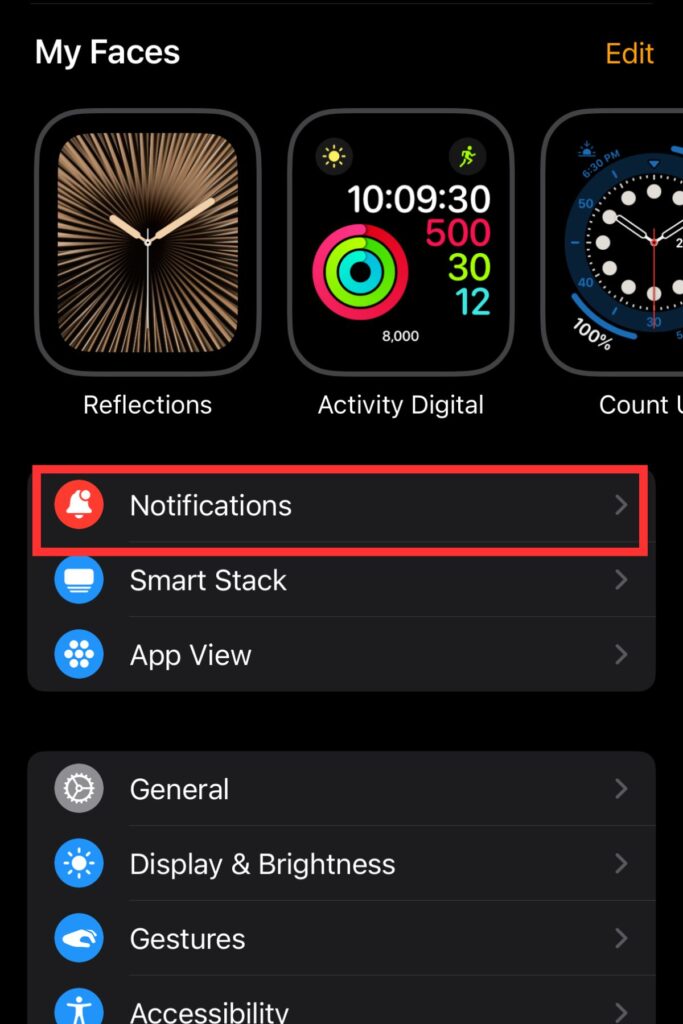

- Open the Watch app on your iPhone.
- Tap Notifications.
- Scroll down to Mirror iPhone Alerts From.
- Toggle on WhatsApp.
Wrap Up
With this game-changing new app, all I have to say on behalf of many WhatsApp loyalists- Thank You, Meta!
Meta also notes that end-to-end encryption will still remain intact and all our messages and calls will remain private, which is always reassuring to hear. Whether you’re replying to a quick text or listening to a voice note- WhatsApp on Apple Watch just makes sense.
So go ahead, update your app because the future of texting is literally at hand! Also, here’s how you can get TikTok on your Apple Watch.
Also read: Is Your Apple Watch Zoomed In? Here’s a Quick Fix, Is Your Apple Watch Not Turning On? Here are 7 Fixes and if you want Siri to stop announcing notifications on your AirPods, read here.
Decode the Decor
The Smart Jewelry Revolution
A practical guide to wearable tech's future — delivered straight to your inbox.
Author
