 Smart AudioOpen-Ear vs Bone Conduction vs Earbuds vs Over-Ear: Which Fitness Headphones Should You Choose?
How To Turn Off AirPod Notifications on iPhone?
Learn how to turn off AirPod notifications on your iPhone with this simple guide and enjoy a seamless, distraction-free listening experience anytime.
Independently tested. We never accept payment for reviews.How we test

What’s inside7 sections · 3 min read
I am sure that at some point, while you’re right in the middle of a workout or just relaxing with your favorite playlist, you’ve had Siri suddenly read out a text or some random app notification through your AirPods. Super annoying, right?
It happens with almost everyone, and you are definitely not the only one. There is no doubt that the Announce Notifications feature can be useful when your hands are full, but it can also get really distracting if your phone is buzzing with unnecessary alerts all day.
Through this post, I will tell you how to turn off those AirPods notifications on your iPhone. It’s up to you if you want to shut them off completely or just silence them for certain apps.
It’s super simple once you know where to look and what to do.
What Are AirPods Notifications?#
Those AirPods notifications are actually part of Apple’s Announce Notifications feature. Basically, it lets Siri read your messages and alerts out loud through your AirPods.
It is meant to be helpful, especially when you are doing something like driving, working out, or just don’t have your phone within reach.
In theory, it’s super convenient, but in reality, it can get a little annoying if you’re getting non-stop updates.
Why Are You Hearing Notifications Through Your AirPods?#
By default, if Announce Notifications is turned on, Siri will automatically read your messages and time-sensitive alerts from apps like Messenger, Reminders, WhatsApp, and even some news or productivity apps.
It’s definitely designed with convenience in mind, but if you are someone who prefers a bit more peace and quiet, especially when you’re just trying to chill or focus, it can really get annoying. The good news is, you can tweak those settings in just a few taps.
How to Turn Off Notifications on iPhone#
To stop Siri from reading any notifications through your AirPods:

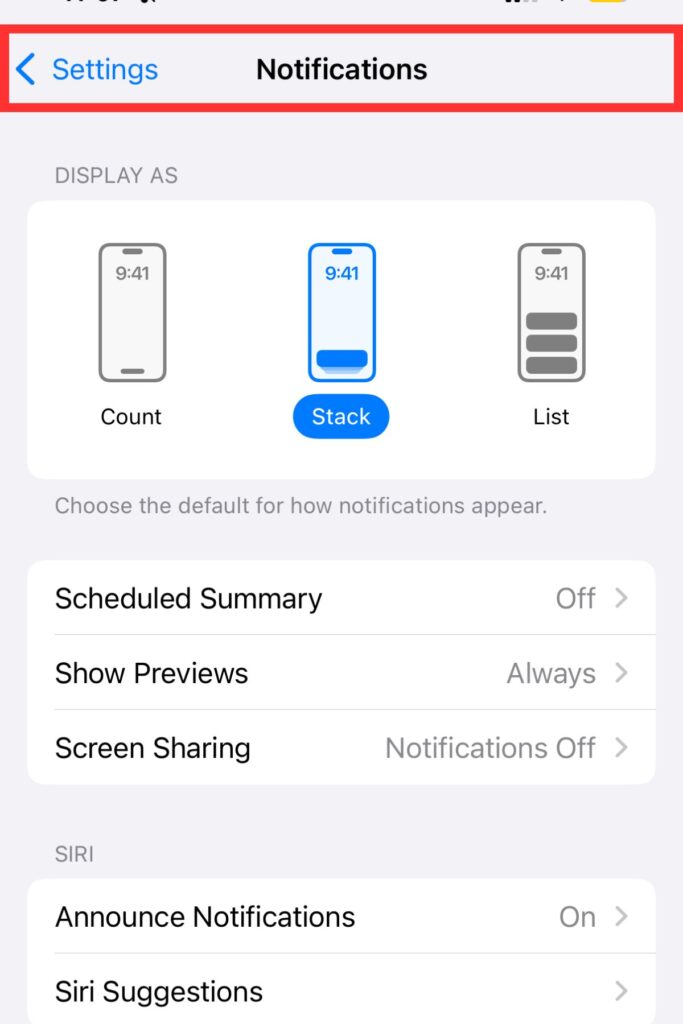

- Open the Settings app on your iPhone
- Tap Notifications
- Select Announce Notifications
- Toggle Announce Notifications to off.
Just like this, all spoken notifications will be disabled while you’re wearing AirPods.
How To Turn Off Notifications For Specific Apps Only#
If you don’t want to disable all notifications, you can simply turn them off for certain apps:

- Open the Settings app on your iPhone.
- Tap Notifications.
- Select Announce Notifications.
- Scroll down to see a list of supported apps.
- Toggle off the switch next to any app you don’t want Siri to announce.
This gives you control over which alerts you want to hear and which alerts you don’t want to hear while keeping the important ones active.
Alternative Methods#
If you still want notifications, but just need fewer interruptions, here are a couple of options you can try:
Use Focus Mode#
You can enable focus mode (like Do Not Disturb, Work, or Personal) to limit who and what can send you notifications.


To do so:
- Go to Settings
- Scroll and find Focus
- Choose a Focus mode and customize the apps and people you want to receive notifications from.
Disable Siri Completely (optional)#
If you rarely use Siri, you can also disable it:


- Go to Settings.
- Scroll and find Siri.
- Tap on Talk to Siri and turn it off.
Keep in mind that this affects more than just announcements.
Wrap up#
Getting random messages or app updates read out loud by Siri through your AirPods can be annoying, especially when you are relaxing or busy. The good news is, you can easily stop it.
Want fewer interruptions but still need some notifications? Try using Focus Mode or turning off Siri altogether. Now you know how to take control and enjoy your AirPods without unwanted distractions!
FAQs#
01Do all AirPods support the Announce Notifications feature?
No, this feature works with AirPods Pro, AirPods (2nd gen and later), and AirPods Max, as well as some Beats models that support Siri integration.
02Will turning off Announce Notifications affect Siri?
No, turning Announce Notifications off only stops Siri from reading them aloud. You can still use Siri for other tasks unless you turn Siri off completely
03Can you quickly disable announcements without going into settings?
Yes, when Siri starts reading a notification, you can say “Stop” or “Mute Notifications” to temporarily silence them. For long-term changes, use settings.
04Do AirPod notifications work without an internet connection?
Yes, as long as your iPhone is connected to your AirPods via Bluetooth and you are wearing them, Siri can announce notifications stored locally on the device, even without Wi-Fi or data.
05Will disabling AirPod notifications affect other devices connected to the same Apple ID?
Changing the notification settings on your iPhone only affects that device. If you are using AirPods with other Apple devices (like an iPad or Apple Watch), you will need to manage notification settings on each one separately.
06Why are you still hearing notifications after turning them off?
If you are still hearing notifications after turning them off, double-check that you turned off Announce Notifications and disabled app-specific toggles. Also, ensure your iPhone is running the latest iOS version, as bugs may cause settings to not update properly.
 LJ
Written by
With a practical, real-world approach to testing, Lokesh focused on smart audio wearables at WearableXP. He covers wireless earbuds, open-ear headphones and audio-enabled devices, evaluating how sound quality, comfort, battery life and connectivity come together to fit naturally into everyday routines like commuting, workouts and remote work.
More from Lokesh 93 storiesKeep readingmore from Smart Audio
All storiesSmart AudioOpen-Ear vs Bone Conduction vs Earbuds vs Over-Ear: Which Fitness Headphones Should You Choose? Smart AudioSoundcore Sleep Earbuds 4 Pro Explained: The Growing Battle for Better Sleep Wearables
 Smart AudioAirPods 5 vs AirPods 4: What’s New and Should You Upgrade?