 NewsXiaomi Clip Earbuds Launched Globally: Features, Price and Battery Life
How To Stop Siri From Announcing Notifications On AirPods?
Stop Siri from announcing notifications on AirPods with these easy steps. Control alerts, customize settings, and enjoy uninterrupted listening.
Independently tested. We never accept payment for reviews.How we test
What’s inside3 sections · 2 min read
I find Siri to be very helpful, but its habit of reading out messages in my ear at times makes me super irritated. To end this once and for all, I wanted to change Siri’s annoying habit.
It’s not that technical, and anyone can do it within seconds. So, next time you feel bothered by Siri announcements, here is what you need to do.
How to Turn Off Siri Reading Messages on AirPods?#
Method 1: change notification settings on iphone#

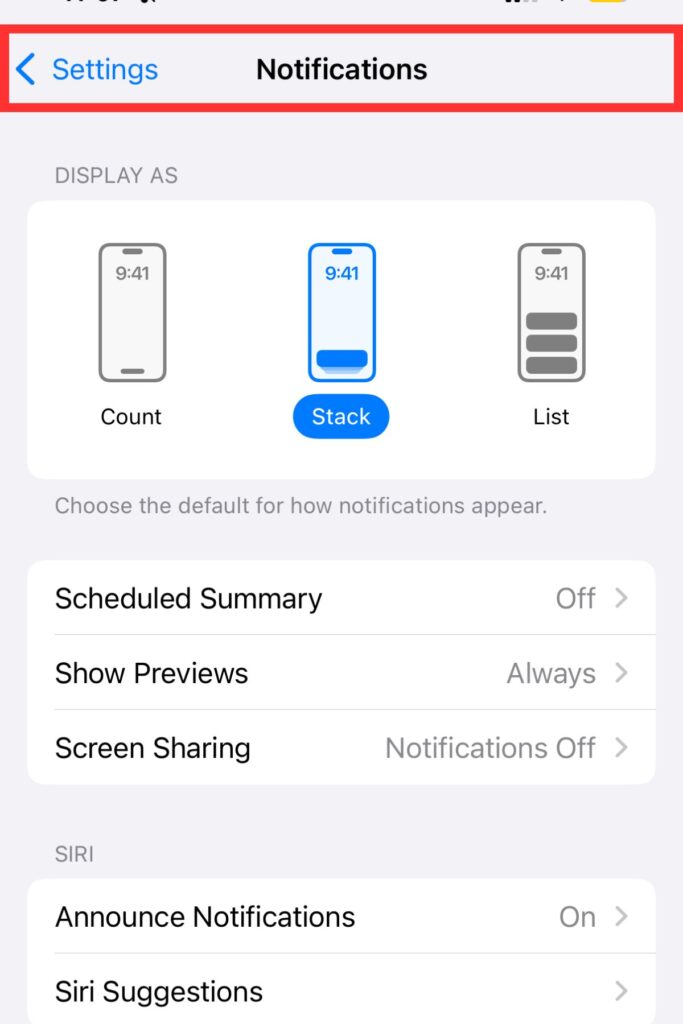

- Start by going to the ‘Settings App‘.
- Scroll down to ‘Notifications.’
- Click on ‘Announce Notifications.’
- Toggle off ‘Announce Notifications.’
Method 2: To Customize Settings#

- To customize the setting, go to ‘Announce notifications‘ again.
- Now select the apps for which you want to turn the notifications off for.
Method 3: Using Control Center While Wearing The AirPods#
- If you have a Face ID, then swipe top right, and if you have Touch ID, then swipe top bottom.
- Then, click on the bell icon with a waveform.
- Now select “off” to turn off the notifications.
Wrapping Up#
Next time you wonder how to stop Siri from reading my messages, you know what to do. Knowing how to turn it off has been a big savior for me, and I know it will help many people.
Don’t worry, turning it off is not the end of the world because you can also turn it back on again or keep it specific for certain apps. This setting also does not apply to CarPlay or headphones, and only to AirPods. So make the settings you have been itching for and enjoy your privacy.
You can also read the comparison between AirPods Pro 3 and AirPods Max 2 if you’re wondering which ones to upgrade your current earphones to.
Frequently Asked Questions (FAQs)#
01How do you stop Siri from announcing notifications, but keep it on for CarPlay?
You have the option to turn off Siri notifications for AirPods or for CarPlay. While selecting, do not select CarPlay to receive notifications in this mode.
02Will disabling Siri notifications affect other features as well?
No disabling Siri notifications does not affect other features. Only the announcement notification will stop; other commands like voice commands remain the same.
03Does turning off Siri from announcing notifications for AirPods also turn it off for headphones?
No, turning off Siri notifications for AirPods does not automatically turn it off for Headphones.
04Why do I still hear Siri announcing notifications even after I have turned them off?
To double-check, always ensure that the announcements are off. Also, you can restart your devices to ensure that the settings are applied properly.
 LJ
Written by
With a practical, real-world approach to testing, Lokesh focused on smart audio wearables at WearableXP. He covers wireless earbuds, open-ear headphones and audio-enabled devices, evaluating how sound quality, comfort, battery life and connectivity come together to fit naturally into everyday routines like commuting, workouts and remote work.
More from Lokesh 94 storiesKeep readingmore from Smart Audio
All storiesNewsXiaomi Clip Earbuds Launched Globally: Features, Price and Battery Life Smart AudioOpen-Ear vs Bone Conduction vs Earbuds vs Over-Ear: Which Fitness Headphones Should You Choose?
 Smart AudioSoundcore Sleep Earbuds 4 Pro Explained: The Growing Battle for Better Sleep Wearables