

Hey, congrats on the new Apple Watch. It looks great and feels high-tech to have on your wrist and I’m sure you’re going to love it. But once the Watch’s excitement settles, you might notice some Apple Watch icons and symbols popping up like a little red dot or those weird masks and wonder if you’re missing something important.

Trust me, I’ve been there. Even after wearing mine every single day for years, there are still moments where I look at a tiny symbol and think, “Wait, what are you trying to tell me now?” Because the screen is so small, Apple has to make a choice: use words that are too tiny to read, or use symbols.
They chose symbols. It’s a brilliant design for a quick glance while you’re mid-sprint or in a dark movie theater, but it’s only helpful if you actually know what those represent. To make things easier for you, I’ve broken down every important Apple Watch icon and symbol I see on my watch.
Quick Guide For Apple Watch Icons and Symbols
| Icon | What It Means | Action Needed |
|---|---|---|
| Red Dot | Notification | Swipe down to read |
| Red Lightning | Low Battery | Charge it soon |
| Green lightning | Charging | None |
| Blue Airplane | Airplane Mode | Turn off to get texts |
| Red Phone | Disconnected | Bring the phone closer |
| Green Phone | Connected | None |
| Water Droplet | Water Lock | Turn the Crown to unlock |
| Green Runner | Workout | End it when finished |
| Purple Moon | Do Not Disturb | Turn off if you are expecting a call |
| Orange Mic | Microphone Active | None, unless you did not trigger it |
| Yellow Circle | Low Power Mode | Charge your watch or turn off the Low Power Mode |
| Car Icon | Active-Driving Mode | Simply disabled the Focus Mode |
| Double AA | Text/Reading | Tap it to make text larger if you are struggling to read a message |
| White Signal Bars | Now Playing | Tap the bars to instantly open the volume and playback controls |
| Blue Arrow | Location | Tap it to see exactly which app is tracking your movement |
This table of Apple Watch icons and symbols is exactly what I wish I had when I first started using the Apple Watch.
Decode the Decor
The Smart Jewelry Revolution — a practical guide to wearable tech.
Control Center Icons
If you aren’t sure how to get to the control center on your Apple Watch, you just need to swipe up from the bottom of the watch face (or press the side button on newer software versions). This is where the utility icons are placed, the tools you use to change how the watch behaves in the moment.
1. Airplane Mode (The Plane Icon)

Most of us only use this when we’re actually on a plane, but I’ve found it’s a secret weapon for saving the battery. If I’m at 15% and I know I won’t be near a charger for two hours, I flip this on. It cuts off the search for Wi-Fi and Cellular signals, which are the biggest battery hogs. Just keep in mind that while this is on, you are “off the grid”. No texts, no pings.
2. Wi-Fi Icon (The Signal Bars Icon)

When this icon is blue, your watch is connected to a Wi-Fi network. What’s cool is that your watch will try to use your iPhone’s connection via Bluetooth first because it uses less energy. If the phone is too far away, the watch switches to Wi-Fi. If you ever see this icon flickering, it usually means your watch is struggling to grab a stable signal.
3. Cellular (The Green or White Dots Icon)

If you paid extra for the Cellular model, these dots are your lifeline. Green dots mean you’re connected directly to a cell tower. This happens when you leave your phone at home to go for a run. White dots mean the cellular radio is on, but the watch is currently using your phone for data. If you see four green dots, you’ve got a perfect signal. If you see one, your phone calls might sound like you’re underwater.
4. Do Not Disturb / Focus (The Moon Icon)

This is my most-used feature. When I’m in deep focus or having dinner with my family, I hit the moon icon. It stops the watch from vibrating. The best part? It mirrors your iPhone. If you turn it on on your wrist, your phone goes quiet too. No more double-muting!
5. Theater Mode (The Comedy/ Tragedy Masks Icon)

This is a lifesaver for movie lovers. When you turn on Theater Mode, two things happen: your watch goes into Silent Mode, and the screen stays dark even if you raise your arm to reach for popcorn. To wake the screen, you have to physically tap it or turn the Digital Crown. I also use this during big meetings or when I’m sleeping and don’t want a bright light in my face every time I roll over.
6. Water Lock (The Droplet Icon)

This is one of the coolest pieces of engineering on the watch. When you go for a swim or hop in the shower, tap the droplet icon. It locks the screen so the water droplets don’t accidentally start a workout or text your boss a string of gibberish.
When you’re done, you spin the Digital Crown. The watch will then play a series of low-frequency bips that actually vibrate the speaker to push out any trapped water. It’s oddly satisfying to watch.
7. Ping your iPhone (The Phone with Sound Waves Icon)

I would be lost without this. If you’re like me and constantly leave your phone in random places like the bathroom counter or under a pillow, tap this icon. Your iPhone will let out a high-pitched ping so you can find it.
If you hold the button down instead of just tapping it, your iPhone’s flash will also blink. This is a lifesaver if you’ve dropped your phone behind the sofa or in a dark car.
8. The Double A Icon

This icon is used to make text bigger. It’s a shortcut to adjust your text size if you’re having trouble reading the small screen.
9. The Silent Mode

This mode will help you to silence the notification sound. It mutes all the sounds, including calls as well as notifications.
10. AirPlay Icon

The AirPlay icon in the Apple Watch helps you choose the audio output device for your Apple Watch.
11. School Time Icon

School Time icon is a focus mode that blocks app access and silences all notifications. It shows only the time with a yellow clock face, making it ideal for kids who carry their Apple Watch to school.
Status Bar Icons
The Status bar is like a dashboard of your watch. These icons usually appear at the top of your watch and they disappear once the problem is resolved.
The Red Dot

This is the icon I usually see at the top of Apple Watch, which simply means that I have an unread notification.
My routine now is to swipe down, check the alerts and hit Clear All at the top. Once you do that, the red dot vanishes.
The Green Phone Call Icon

If you see a tiny phone icon, it usually means that you are on an active phone call. If you are using an app and want to get back to the call screen to hang up or mute, just tap that green icon and it will act like a shortcut for you.
You can also transfer calls from your Apple Watch to your iPhone.
The Blue Arrow Icon

When you’re using Apple Maps for directions, this little blue arrow appears.
I find this helpful when I am travelling in a new city. I can keep my phone in my pocket and just look for the blue icon. When a turn is coming up, I can tap the icon to see exactly which street to turn on.
The Microphone Icon

Apple is concerned about your privacy. If you see a small orange microphone icon, it means an app is currently using your watch’s mic.
This happens when you’re talking to Siri, using the Walkie-Talkie app, or recording a voice memo. If you see it and you aren’t doing any of those things, it’s a good sign to check which apps are running in the background.
Charging Symbol

We all know the lightning bolt, but did you know the color matters?
- Green Lightning: It means that your Apple Watch is charging.
- Red Lightning: It means that your Apple Watch has a critically low battery.
- Flashing Red Lightning: This is a warning. It means the watch isn’t getting enough charge from the charger. This often happens if you’re using a cheap third-party charging puck or if the magnets aren’t aligned properly.
The Blue Lock

If you see a tiny blue lock, it means that your watch is locked and it needs your passcode to open it .
This usually happens if the watch is taken off the wrist. If you wear your watch too loosely, you might see this icon pop up during the day because the sensors lost contact with your skin.
Did you know? You can also unlock your Apple Watch using your Mac.
Walkie-Talkie Icon

If you see a tiny yellow Walkie-Talkie icon, it means the Walkie-Talkie app is active and you can connect to your contacts. This means you can add friends and have them send you voice messages instantly. If your Watch’s toggle is off, then it makes you unavailable to receive instant voice messages from your contacts.
Now Playing Icon

When you see small white bars jumping at the top of your screen, it means that something is playing, whether it is an audiobook, Spotify, or a YouTube video on your phone. By tapping the icon, you can control the media playback.
Reduced Interruptions

This feature in focus mode uses Apple Intelligence (AI) to filter the notifications and shows only the important ones. You can even set which people and apps are allowed or silenced within the Reduced Interruption Focus mode. It is one of the coolest Apple Watch icons, in my opinion.
Car Icon

If you see a tiny car icon at the top of your Apple Watch, it means that Driving Focus is currently active on your iPhone.
The Apple Watch also marks a parked car as it helps navigate the parking lot. It automatically appears when your iPhone gets disconnected from your car’s Bluetooth. For this to work, you will need to have an Apple Watch Series 5 or later (including both models of SE and the Ultra). This, however, does not show up as an icon on your Apple Watch screen.
You just need to open the Maps app, tap on the search field and select the parked car to get the directions. For the Compass app, you need to open the app and then tap waypoints and you’ll see your parked car location.
Yellow Circle

It means that the Apple Watch is in Low Power Mode. It is a battery-saving feature that limits the usage of your Apple Watch.
Workout and Health Symbols
For many of us, the Apple Watch is primarily a fitness tool. While running, instead of seeing your wallpaper, the screen changes to show your pace, distance, and heart rate. During yoga, the screen shifts to show your calories burned and the elapsed time of the session.
There are several unique Apple Watch icons here that are important for tracking your progress.
The Activity Rings
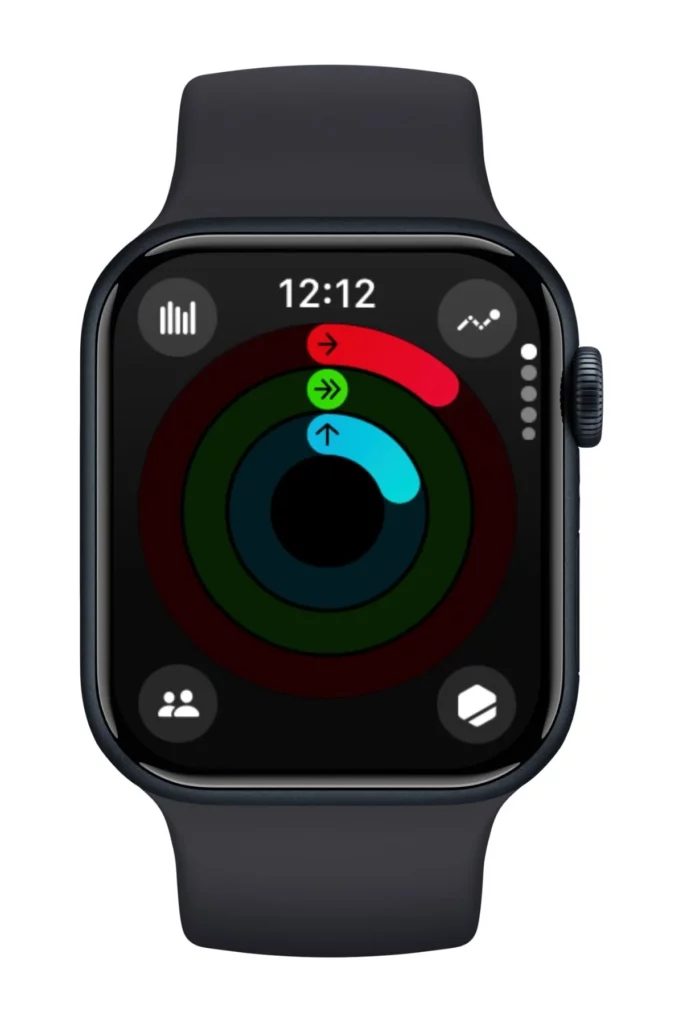
- The Red Ring (Move): It helps to track your active calories.
- The Green Ring (Exercise): This helps in tracking minutes of your brisk activity.
- The Blue Ring (Stand): This tracks how many hours you’ve stood up and moved for at least one minute.
I’ve become obsessed with closing my rings and do you know you can manually adjust your Apple Watch Activity rings if you forget to wear your Apple Watch during a workout? How cool.
The Green Running Figure

This icon lives in the status bar whenever a workout is active. It also stops automatically when you stop doing the workout. It’s a great reminder, but it can also drain the battery.
Heart Rate Icons

When you’re in a workout, you’ll see a heart icon that sometimes beats. This means the watch is taking your readings at that time. A gray heart icon means the watch is not able to determine your heart rate readings at that moment. The red heart icon signifies that the watch is actively tracking your heart rate.
However, there’s another version of these Apple Watch icons: a heart with lines above and below it. This is your Resting Heart Rate or Walking Average. If you ever get a notification, read it carefully. The watch might have detected an unusually high or low heart rate while you were sitting still.
Sleep Mode Icon

This indicates that Sleep Focus is active. The watch face will turn into a very simple, dimmed digital clock. This is designed so that if you accidentally lift your wrist at 2:00 AM, you don’t get blinded by a bright light. It also disables notifications, so a random Like on your Instagram photo doesn’t wake you up.
Connectivity Icons
The Apple Watch is meant to be an extension of your iPhone. It’s also becoming more independent by learning how it is connected to understanding why some features are working. Here are some of the Apple Watch icons and symbols related to connectivity and what they mean:
The Red Phone Icon

This icon shows a red phone with a diagonal line through it. It means the “tether” is broken. Usually, it’s because your phone is out of Bluetooth range or the battery died. I often see this when I head down to the laundry room and leave my phone. The watch will still tell time and track your steps, but it won’t mirror new notifications.
Troubleshooting Symbols
Not all Apple Watch icons are friendly. Some are designed to get your attention because something is wrong. Don’t worry, though; most of these are soft warnings rather than “your watch is broken” warnings.
The Red Lightning Bolt

If your watch screen goes black and all you see is a tiny red lightning bolt and the time, you are in Power Reserve. The watch has shut down all smart features just to keep the clock running.
To fix this, you have to charge it. To get back to your normal watch face after charging, you usually have to hold down the side button to restart the device.
The Temperature Warning

This is one of the Apple Watch icons that looks scary. It’s a red thermometer icon. It appears that the watch gets too hot. I’ve had this happen exactly once when I left my watch on a table in the direct sun during a hot summer day.
The watch will literally refuse to work until it cools down. If you see this, take it off your wrist and put it in a cool, shaded spot. Do not put it in the freezer; the extreme temperature change can crack the glass or damage the battery!
The Spinning Wheel / Loading Icon

We’ve all seen the spinning wheel of death on computers. On the watch, a white spinning circle is one of the Apple Watch icons that usually means it’s trying to download a software update or sync a large amount of data (like a new playlist).
If it stays there for more than 15 minutes and nothing is happening, your watch might be hung. A quick force-restart (holding the Side Button and Digital Crown together) usually clears it right up.
The Red Exclamation Icon

This is one of the rarest and most serious Apple Watch icons. It means a software update failed or the operating system has crashed. If you see this, you just need to connect your iPhone to a Wi-Fi with Bluetooth turned on, have your Apple Watch on its charger and then double-click the side button and follow the steps that appear on your iPhone to restore the watch using your iPhone. You can also contact Apple Support.
Wrap Up
After wearing an Apple Watch for years, I’ve realized that most Apple Watch icons are just there to give you information, not to tell you that you’ve done something wrong. The more you use your watch, the more these icons and symbols will become second nature.
After spending time with the Apple Watch, you won’t even have to think about certain Apple Watch icons and symbols. You’ll just glance down, see a purple moon, and know you’re in for a quiet, focused hour of work.
Once you feel comfortable with these Apple Watch icons and symbols, I recommend that you explore some hidden Apple Watch hacks to enhance the watch experience for you.
FAQs
Decode the Decor
The Smart Jewelry Revolution
A practical guide to wearable tech's future — delivered straight to your inbox.
Author
