 NewsAina Ring Explained: The AI Smart Ring That Lets You Control Apps Without Your Phone
My Oura Ring Stopped Working & This is How I Fixed It!
Oura Ring stopped working? Here’s how I fixed it quickly with practical solutions to restore your wearable and resume accurate tracking.
Independently tested. We never accept payment for reviews.How we test
What’s inside3 sections · 4 min read
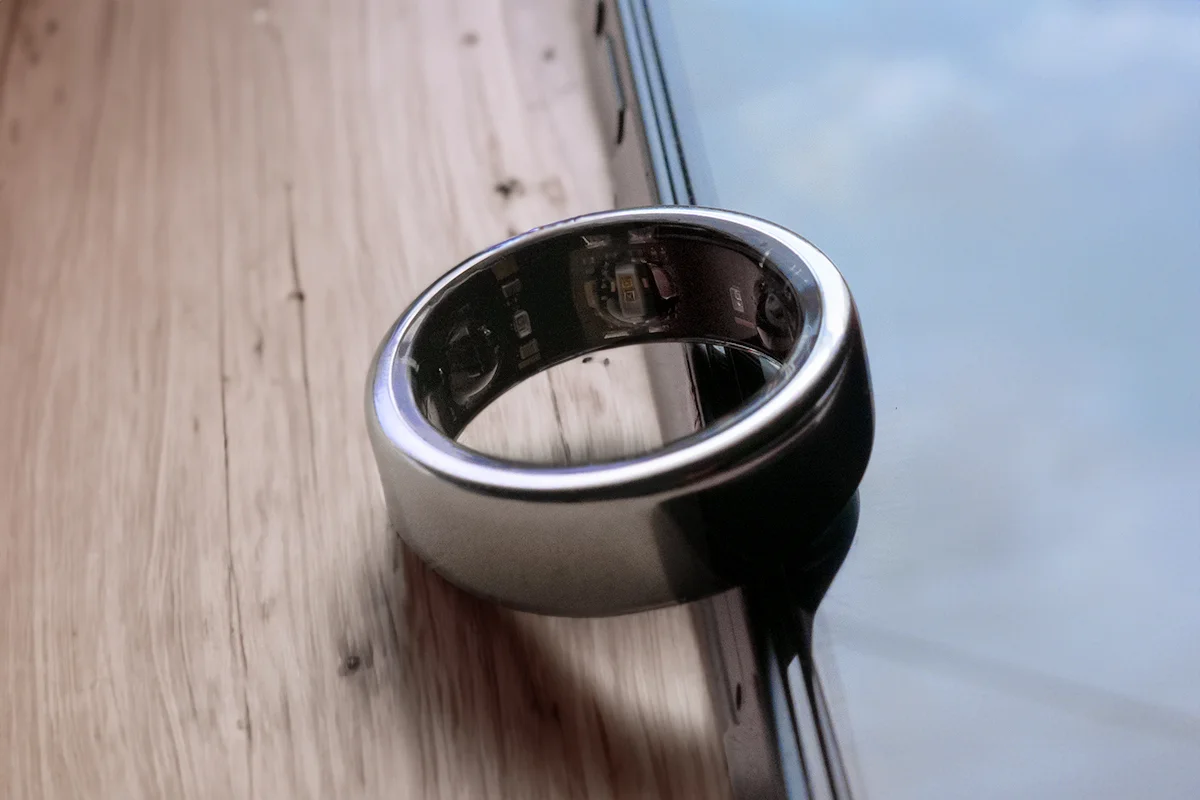
When you have been using a smart ring for a long time, you are bound to face some problems. My Oura ring was working fine until “that day.” It was when I recognized that my Sleep and Readiness scores were not updating on the Oura app.
I was baffled for a moment to find myself in that situation. So, if your Oura Ring has also stopped working and you are looking for solutions, I have got your back! So stay tuned.
At a glance
The shortlist5 picks, tap one to jump to it.
How To Fix If The Oura Ring Stopped Working?#
When I first noticed that my Oura app was not updating sleep data, I thought that the ring might not be syncing with the app properly. However, I noticed shortly that my Oura Ring was not working at all!
I tried wearing the Oura ring correctly and even checked if the ring was charging or not. It took me some time to accept that my ring was not recording data. I was puzzled, but eventually found ways that actually helped me to resolve the issue.
01Check For Oura Firmware Updates#
When my ring was not working, I went through the app to see whether there was any way to reconnect with the ring. There was none. However, when I uninstalled and reinstalled my Oura app, I found the “Update now” message on the Oura Home tab. I simply tapped on the Firmware update option, and the ring was updated.
At this point, I thought that it would be better if I could turn on the automatic firmware updates. So, here is how I turned on the automatic firmware updates (for Gen3):
1. Launch the Oura app and tap on the Menu icon.

2. Next, tap on Settings.

3. Scroll down to “Software information.” Under the Software information, tap on the Firmware.

4. Toggle on the Automatic update button.

Unfortunately, automatic firmware updates are not available in Oura Gen2. Whenever there is a firmware update, Gen2 users will receive a message notifying the update. They have to tap on the “Update now” link on the message manually for the firmware update.
02Hardware Reset#
When searching for solutions on social platforms, I found that many Oura users mentioned this issue, and they suggested a quick hardware reset. It actually works! The best part is that a hardware reset only deletes the unsynced data, so you won’t lose any data that is already synced with the app.
Here is how you perform a hardware reset:
1. Place your Oura ring on the charger.

2. Tap the charger a few times rapidly while placing the ring on it (hold the ring with the help of a finger).

3. Wait for approximately one minute. Then, re-open the Oura App and check the connectivity.
03Soft Reset#
I found another effective way to check my Oura ring when its lights were not working. I tried Soft Reset as suggested by Oura support. According to Oura support, a soft rest gently recalibrates the ring’s sensors. Here is how I performed a soft reset:
1. Open the Oura app and tap on the ring icon in the upper right-hand corner of the Home tab.

2. Swipe left to open the “My Oura Ring” page.

3. Tap Soft Reset.

Note: After performing a soft reset, I didn’t remove the Oura ring from my finger for 24 hours to check if the sensors were collecting data correctly like before.
04Factory Reset#
Factory resetting is the ‘ultimate’ solution that I will suggest. If none of the above-mentioned tricks work for you, then you must go for the factory reset. A factory reset will erase the data saved by the ring and reset the ring sensors. So, don’t worry; data synced with the app will remain intact! So, here is how you can try factory resetting the Oura Ring:
1. Place your Oura ring on the charger and make sure it has a minimum 50% charge.
2. Open the Oura app and tap on the Hamburger Menu icon.
3. Open Settings.
4. Then, back up all data.

5. After the data backup is completed, remove the ring from the charger and place it on a table or a plain surface.
6. Now, choose the Ring icon in the upper right-hand corner of the Oura Home. Swipe left.
7. Scroll down to Tools, and tap on Factory reset.

9. After the Factory Reset is completed, remove the ring from the charger.
05Contact Oura Support#
By now, your problem must be solved since the above-mentioned solutions worked for me. However, if you find that the ring is still not working, then it is wise to connect with Oura support. It is possible that your ring is seriously damaged, and if it is within the warranty period, then you can claim a refund or exchange as per the Oura return policy.
Frequently Asked Questions#
01Why Isn’t My Oura Ring Working?
There could be many reasons why your Oura ring is not working. Here are some of the plausible reasons that you should consider:
1. Our ring is too tight or too loose on your finger.
2. Oura ring is out of charge.
3. Sensors have stopped working.
02How To Fix Oura Ring Not Charging?
1. Make sure you are using the size-specific charging dock.
2. Use a different USB-A to USB-C charging cable.
3. Turn the USB-C cable 180 degrees. Then, insert the cable into the charging port.
4. Try a different power source.
03Why Did My Ring Stop Charging?
If your Oura ring is not charging, there could be three possible situations:
1. Your Oura Ring charging dock or cable is not working.
2. Your Oura ring is damaged and not charging.
3. Your power brick is at fault.
Wrap Up#
To me, Oura is the finest health guide or companion that I have put my faith in for a long time. However, that doesn’t mean this smart device is flawless. To be truthful, Oura is going through many updates and changes for good. In this process, sometimes the Oura ring shows trouble.
Nevertheless, as you can see, solutions are there too! So, if your Oura ring is not responding well, try any of the measures that I have discussed in this article. Hope this guideline will be helpful to you! Got a question? Share your thoughts in the comment section.
 SP
Written by
Review Specialist
With an eye for detail and a particular interest in FemTech, Shradha at WearableXP oversees editorial direction and publishing standards. Her focus on Smart Rings and compact wearables centers on how they integrate health insights, sleep tracking, and recovery metrics into day-to-day lives, making data feel more practical and relatable.
More from Shradha 298 storiesKeep readingmore from Smart Rings
All storiesNewsAina Ring Explained: The AI Smart Ring That Lets You Control Apps Without Your Phone Screenless BandsFitbit Air vs Ultrahuman Air: Which Screenless Wearable Is Right for You?
 Smart RingsCircular Ring 2 vs Circular Ring 3: What Changed and Should You Upgrade?