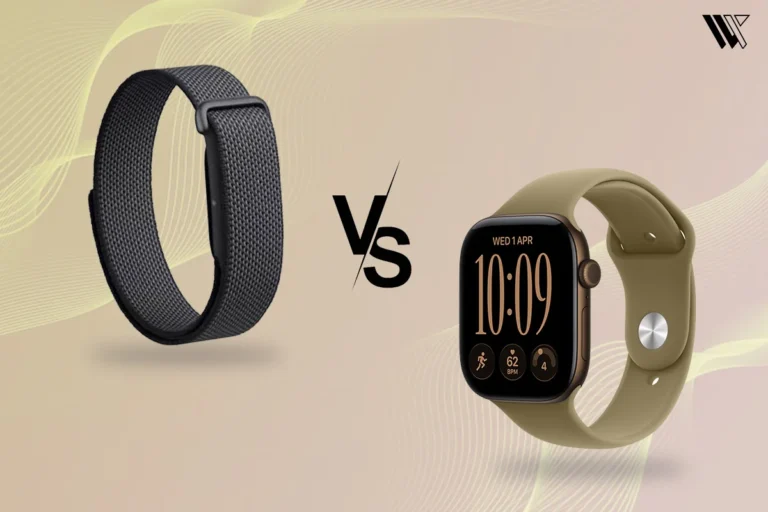
 Screenless BandsFitbit Air vs Apple Watch: Which Wearable Is Better for Health Tracking?
How To Call 911 On An Apple Watch?
Learn how to call 911 on your Apple Watch quickly in an emergency. Step-by-step guide to use Emergency SOS safely and efficiently.
Independently tested. We never accept payment for reviews.How we test

What’s inside4 sections · 3 min read
Gifting an Apple Watch to elderly people can be a big blessing. Its health tracking features and ability to call 911 are beneficial for its users.
This feature is highly appreciated not just by the elderly but by everyone in today’s world. However, if you have an Apple Watch and are wondering how to use this feature, follow these two steps to get it right.
2-Step Process To Call 911 On An Apple Watch#
- Press and hold the side button until the Emergency SOS option appears.
- Once the option is available, you can either drag the emergency SOS slider or keep pressing it, and it will automatically call 911 within a few seconds.
Why You Are Unable To See The 911 Calling Option On Apple Watch#
You Are Using The GPS-only Apple Watch#
When I am using my GPS-only Apple Watch, I am unable to get the calling option as well. This happens because the GPS-only Apple Watch does not have its own calling abilities. You need to have a proper connection or an iPhone nearby to make a call.
On the other hand, my cellular Apple Watch does not create this problem. With your cellular Apple Watch, you will get the option of calling 911 anytime.
Region Limitations#
The Apple Watch also features some region-specific capabilities. For example, if you are living in India, then you need to call 112 and not 911, which works based on the location, like the US and Canada.
So there is an emergency calling option, but 911 might not be the number. Try being aware of the emergency number for your location.
Also read: Fixes for Apple Watch Not Showing Text Messages
Settings Not Done Properly#
With your Apple Watch, you need to turn on the settings so that you can call 911. To enable this feature, I go to the Watch app on my iPhone and then click on the Emergency option. There, I enable the hold side button.
Only when this feature is enabled will you be able to make emergency calls; if not, then no matter how much you press the side button, it won’t work.
No Network#
I thought that for calling 911, you do not need a network, but apparently, that is not the case with the Apple Watch. You need to have a working cellular connection.
The same goes for GPS-only Apple Watches as well. Since GPS, only Apple Watches are connected to an iPhone; you need to have a signal. If your iPhone has no signal, then it won’t permit your GPS-only Apple Watch to make any calls.
Also read: Why Donʼt I Get WhatsApp Calls On My Apple Watch?
Final Thoughts#
Knowing how to use this feature on your Apple Watch is crucial, especially if you have seniors at home. No matter which Apple Watch you have, you can avail of this feature as long as it has an active cellular plan or is connected to your iPhone. This is also very helpful if you have kids and plan on giving them a smartwatch; here are the Best Kids Smartwatches for Calls, GPS and Safety.
If you ask me, I believe this is one of the prioritized features you need to check when you get an Apple Watch. This feature is helpful, necessary, and definitely something that people of all ages will find crucial.
Frequently Asked Questions [FAQS]#
01Can your Apple Watch call 911 directly?
Yes, your Apple Watch can call 911 directly if crash detection and Fall Detection features are on.
02Why is my Apple Watch unable to call 911?
Your Apple Watch cannot call 911 because you do not have cellular service. If your iPhone is connected to the watch via Bluetooth and it is in airplane mode or does not have a signal, this can also happen.
03Why does my Apple Watch keep calling 911?
Accidental pressure, tight calling, crash detection, and fall detection are major causes of this issue. To avoid this issue, you should also toggle off “ auto call” in the Watch app.
 RK
RKWritten by
With a focus on real-world usability, Rahul at WearableXP covers smartwatches and wearable fitness tech. He evaluates how devices combine activity tracking, health metrics, battery life and connectivity. His work helps readers understand how smartwatches fit into everyday routines through practical performance and software-driven features.
More from Rahul 339 storiesKeep readingmore from Smart Watches
All storiesScreenless BandsFitbit Air vs Apple Watch: Which Wearable Is Better for Health Tracking? Smart WatchesAmazfit T-Rex Ultra 2 Review: Is This Rugged Smartwatch Worth $549.99?
 Smart WatchesApple Watch Ultra 4 Review: Is Apple’s Adventure Watch Actually Worth Buying?