

Last month, one of my friends upgraded from an old iPhone to a brand-new one. Everything transferred smoothly, photos, apps, contacts, even WhatsApp chats. But when he tried connecting his Apple Watch, it refused to pair with the new phone. The watch was still linked to the old iPhone and suddenly, a simple upgrade turned into a frustrating setup problem.
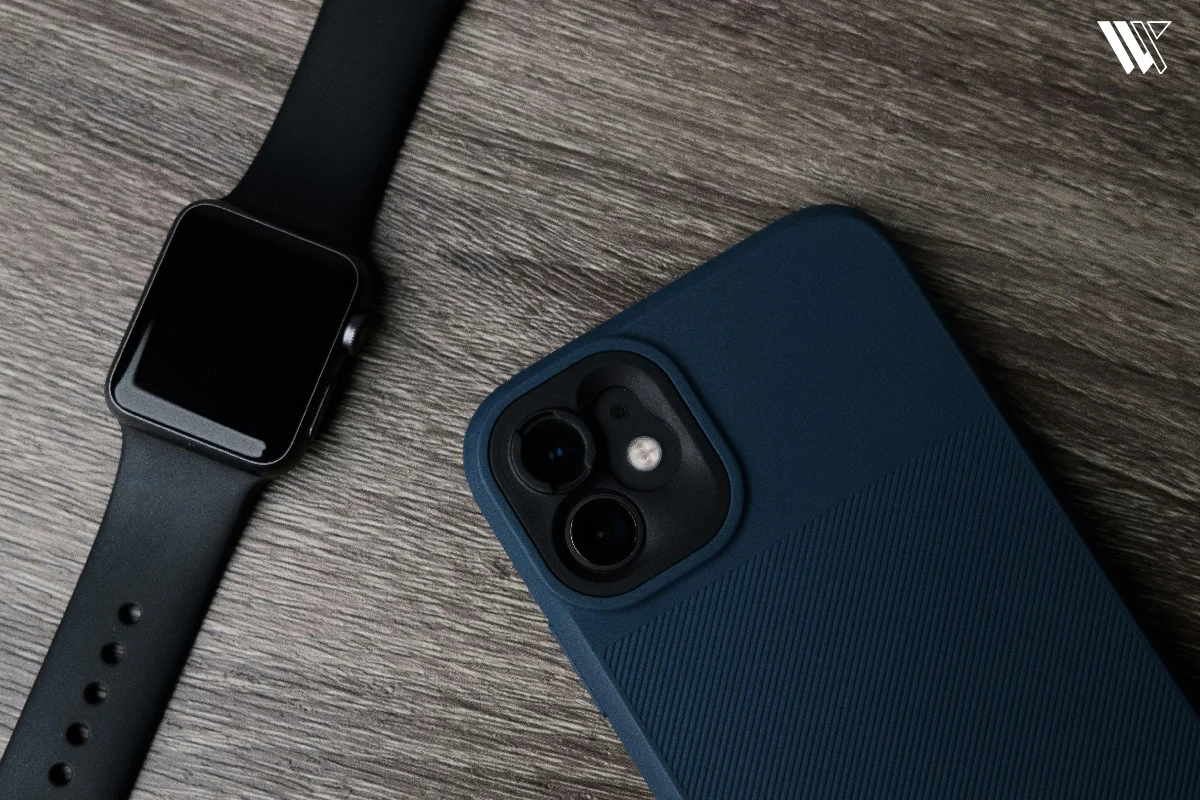
That is exactly why many people search for how to unpair the Apple Watch from their old phone before switching devices. Whether you are upgrading your iPhone, selling your watch, resetting it or fixing pairing problems, properly disconnecting the watch is important. The good news is that the process is actually simple once you know the right steps.
Decode the Decor
The Smart Jewelry Revolution — a practical guide to wearable tech.
In this guide, I will explain everything, from how to unpair the Apple Watch from iPhone to resetting the watch, removing Activation Lock and pairing it with a new phone.
Why You May Need to Unpair Your Apple Watch
An Apple Watch is not like a standard Bluetooth accessory that can just jump from one device to another seamlessly. An Apple Watch is designed to pair closely with a single iPhone at a time.
There are several scenarios where learning how to unpair Apple Watch from old phone profiles becomes essential:
- Upgrading Your iPhone: When you move to a new iPhone, your wearable does not automatically follow you. You must formally break the link with the old device before the new phone can take control.
- Selling or Gifting the Apple Watch: If you plan to sell, trade in or give away your wearable, leaving it linked to your personal phone means the next owner will have your data.
- Resetting the Device for Troubleshooting: Sometimes, a software update goes wrong or sensors stop syncing. Unpairing and restoring the wearable is the ultimate way to clear out corrupt system files.
- Fixing Persistent Pairing Issues: If your wearable constantly loses its Bluetooth connection or fails to sync health data, a clean unpair and repair often solves the underlying system conflicts.
How to Disconnect Apple Watch From iPhone
When you want to know how to unpair an Apple Watch from an old phone, the absolute best method is to use the official Watch app on the original phone. This is considered the clean method because it handles several critical tasks behind the scenes simultaneously.
Using the Watch App
The Watch app acts as the command center for your wearable. When you initiate a disconnect through this application, your phone and watch communicate directly via Bluetooth to ensure no data is lost during the separation.
Disconnecting Properly
To separate the devices properly, you must keep them physically close together. If you move them to opposite sides of the room while trying to figure out how to unpair the Apple Watch from the old phone settings, the Bluetooth connection will drop, resulting in an interruption of the reset process.
What Happens During Unpairing
When you use the official app method, three crucial things happen automatically:
- Automatic Backups: Your iPhone immediately creates a fresh, up-to-the-minute backup of your watch data. This includes your custom watch faces, app layouts, system settings and health data.
- iCloud Data Sync: Your latest watch data syncs back to the paired iPhone and can then be stored through iCloud Health sync or iPhone backups.
- Activation Lock Removal: Your Apple Account disengages its security lock from the wearable. This is the single most important step if you want to pair the watch to a completely different phone or user account later.
How to Unpair Apple Watch from iPhone
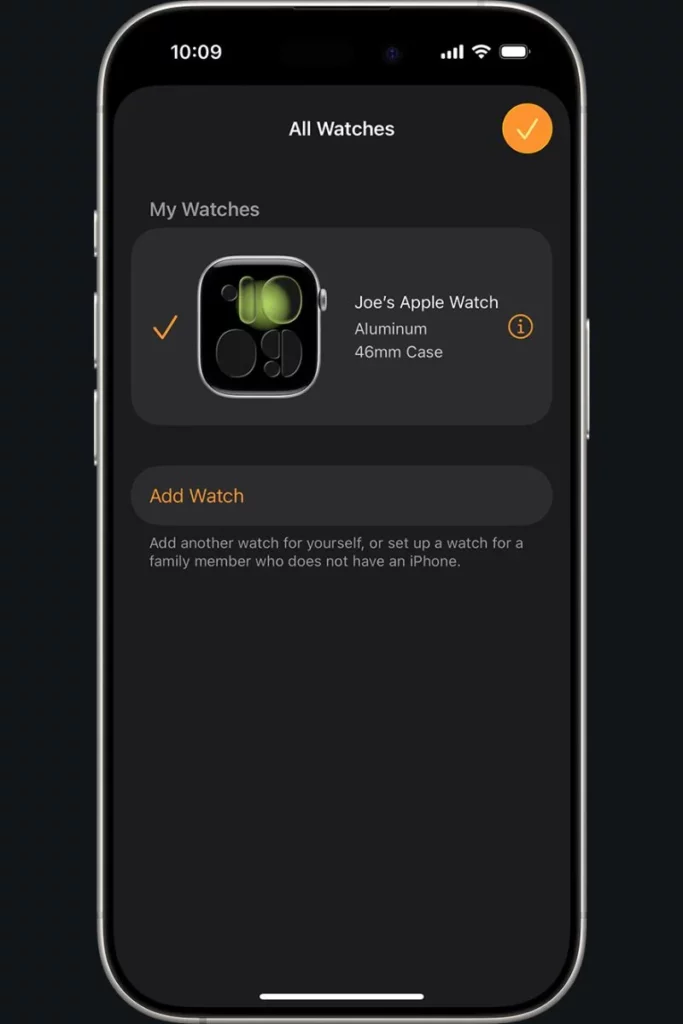
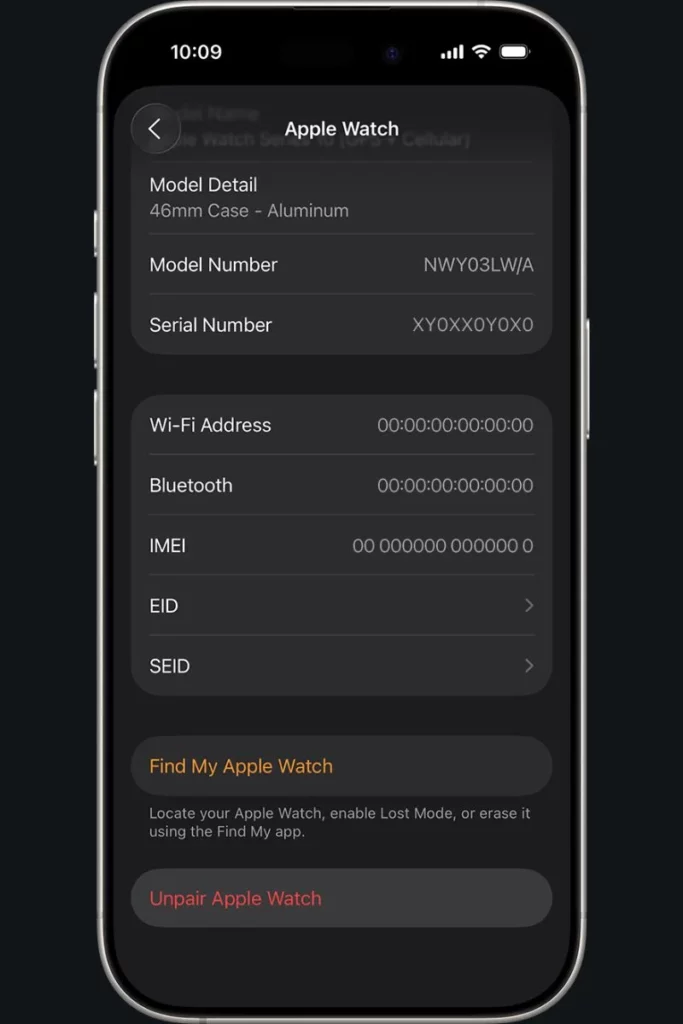
If you still have your old phone functional and nearby, this is the exact process to follow. Following these steps carefully will guarantee a perfect backup and a clean security release.
Step-by-Step Instructions
- Bring your iPhone and Apple Watch close together so they have a strong Bluetooth connection.
- Open the Watch app on your old iPhone.
- Navigate to the My Watch tab at the bottom left of the screen and tap on All Watches located at the top left.
- Look for your current watch model in the list and tap the small “i” (information) icon right next to it.
- Tap Unpair Apple Watch.
- For cellular models, a prompt will appear asking if you want to keep or remove your plan. If you are pairing this watch to a new phone, choose to keep your plan. If you are selling the watch, choose to remove your plan.
- To finalize the process, enter your Apple ID password when prompted. This step disables Activation Lock.
- Tap again to confirm. Your phone will show a spinning wheel while it backs up the watch and then the watch screen will change to the classic rolling Apple logo with a progress circle.
By completing this official sequence, you create a perfect transition environment, making it incredibly easy to learn how to unpair Apple Watch from old phone systems.
How to Unpair Apple Watch Without the Old
What happens if your old phone is completely broken, lost or already wiped clean? This is where many users panic, thinking their wearable is permanently locked. Fortunately, you can still reclaim your watch, though the process looks slightly different. For this, you need to follow:
Factory Reset from the Watch
If the original phone is gone, you cannot perform a standard unpair because there is no device to receive the backup or send the unpair command. Instead, you must force a factory reset directly from the watch itself.
On your watch, open the Settings app, navigate to General, tap Reset and select Erase All Content and Settings. This completely wipes the internal drive of the watch and brings it back to the original factory setup screen.
Removing from iCloud and Activation Lock Issues
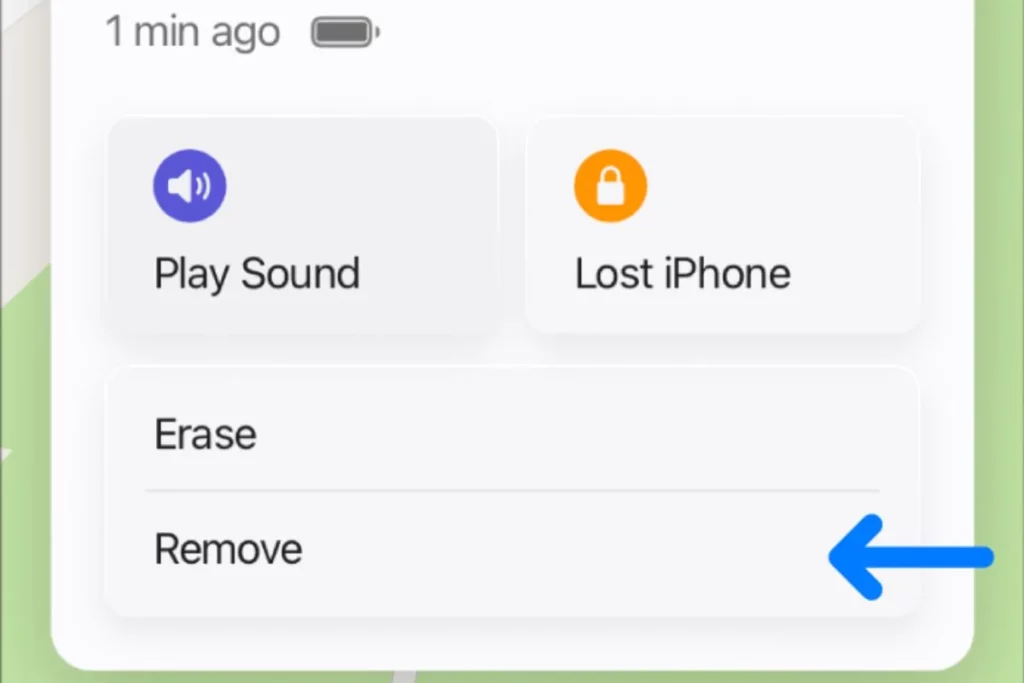
Wiping the watch locally clears your data, but it does not remove Activation Lock. Activation Lock remains tied to the Apple ID previously used with the watch. If you try to pair it to a new phone now, the setup screen will stop you and demand the Apple ID login associated with the old setup.
To bypass this without the old phone, follow these steps:
- Open a web browser on your computer or tablet and go to iCloud.
- Sign in using the exact same Apple ID and password used on your old phone.
- Open the Find My interface from the iCloud dashboard.
- Click on All Devices at the top of the screen and select your Apple Watch from the list.
- Click Erase Apple Watch. Follow the prompts until the device is remotely cleared.
- Once erased, click the Remove Account button (or the small “X” icon) next to the watch name.
Taking these steps breaks the digital bond via the cloud, successfully executing how to unpair Apple Watch from old phone profiles even when the physical phone is missing.
How to Reset Apple Watch
Sometimes you don’t actually want to pair to something new, you just want a fresh start on your watch. Knowing how to reset Apple Watch properly saves your time when you are dealing with a freezing screen or a software glitch.
Reset From Settings
If your watch screen is working and is responsive, the easiest route is to navigate directly to Settings> General> Reset> Erase All Content and Settings. This clears the internal cache and returns the operating system to defaults.
Hard Reset
If your watch is frozen on an error screen, stuck in a boot loop or you completely forgot your local numerical passcode, you will need to perform a hardware-level factory reset:
- Place your watch securely on its magnetic charging puck.
- Press and hold the side button (the flat button below the Digital Crown). Keep holding it until the power slider menu appears on the screen.
- Do not slide the power off bar. Instead, press and firmly hold down the Digital Crown itself.
- After a few seconds, a hidden menu will pop up asking if you want to Erase All Content and Settings.
- Tap Reset, then tap Reset a second time to confirm.
Erase All Content and Settings

If you completely forgot your screen lock passcode, you can still erase the device using its physical buttons.
- Place the watch firmly onto its magnetic puck charger.
- Press and hold the Side Button down until you see the power slider menu pop up in the upper right corner.
- Press and hold down the round Digital Crown button until a hidden menu appears, reading Erase all content and settings.
- Tap Reset and then tap Reset once more to confirm the command.
Note: Wiping your watch directly through its settings or via a hardware reset does not remove the anti-theft Activation Lock. You will still need to enter your original Apple Account credentials when you try setting it up again.
How to Pair an Apple Watch to a New Phone
Once you have successfully achieved how to unpair Apple Watch from old phone configurations, your watch will display the multi-language welcome screen. Now, it is time to hook it up to your brand-new iPhone.
iPhone Setup Process
Before touching your watch, ensure your new iPhone is fully set up, connected to a stable Wi-Fi network and has Bluetooth turned on. You should also ensure that you are signed into your main Apple account on the new phone.
Restoring Backup and Moving Health Data
During the pairing process, the iPhone will ask if you want to set the watch up as a brand-new device or restore it from an existing backup.
If you used the “clean” unpairing method with your old phone, select the most recent backup file. This will restore all your custom layouts, fitness records and preferences in a few minutes. Your historical health data is tied directly to your Apple ID and iCloud account, so as long as your new phone is signed into the same account, your rings, steps and workout history will populate automatically.
How to Pair an Apple Watch to an iPhone
If you are looking at a fresh setup screen, pairing the devices takes anywhere from 5 minutes to 45 minutes, depending on the signal. You just need to follow this quick step-by-step method:
- Turn on your watch by pressing and holding the side button until the silver Apple logo appears.
- Bring your unlocked new iPhone right next to the watch. A pop-up card will automatically appear on your phone screen, reading “Use your iPhone to set up this Apple Watch.”
- Tap Continue. If the pop-up does not appear, manually open the built-in Watch app on your phone and tap Start Pairing.
- A beautiful, swirling blue particle animation will appear on the watch face.
- Hold your iPhone camera over the watch screen, centering the animation inside the on-screen viewfinder box.
- The phone will chime to confirm a match. From here, choose either Restore from Backup or Set Up as New Apple Watch and follow the on-screen prompts to finish the syncing process.
How Activation Lock Works on Apple Watch
Activation Lock is an anti-theft security feature designed by Apple to ensure that if your wearable is ever lost or stolen, no one else can wipe it and use it as their own.
Understanding this system is critical when dealing with how to unpair Apple Watch from old phone profiles:
- The Link to Find My: The moment you turn on “Find My iPhone” on your handset, Activation Lock automatically turns on for your paired watch. It uploads the unique hardware serial number of your watch to Apple’s security database and binds it to your specific Apple ID credentials.
- The Apple ID Wall: Even if a thief performs a hardware reset using the physical buttons, the watch will check in with Apple’s activation servers during setup. It will see that the device is locked and refuse to progress past the activation screen without your account password.
- Second-Hand Issues: This is the primary reason why buying a used watch online can be risky. If the previous owner simply resets the watch from the screen but forgets to log out of their account or unpair it properly via their phone, the buyer will remain locked out forever.
Common Problems While Pairing or Unpairing Apple Watch
Even when you follow the instructions perfectly, consumer electronics can occasionally run into random wireless software hiccups. The following solutions will help you to fix any potential problem.
- Pairing Failed Error: If your devices refuse to sync up, toggle your iPhone’s Bluetooth off and back on again via the Control Center. If that doesn’t clear it, restart both your phone and watch to clear out conflicting background processes.
- Unable to Verify Update: This usually happens when your watch is running a much older operating system version than your new phone. Make sure your iPhone is connected to a fast 2.4 GHz or 5 GHz Wi-Fi network, place the watch on its charger and try running the software update utility again.
- Watch Stuck on Apple Logo: If your screen freezes on the white logo during a reset, perform a hard reboot by holding down the Side Button + Digital Crown simultaneously for 10 seconds until it forces a clean system restart.
- Old Apple ID Issue: If the setup wizard demands a password for an email address you no longer use or have access to, you will have to go to Apple’s official account recovery portal online to reset your outdated security credentials.
- Watch Not Connecting: Verify that Airplane Mode is turned off on both units. Your watch relies heavily on local wireless frequencies, so ensure no other bulky wireless accessories are actively interfering nearby.
Tips Before Switching Apple Watch to a New iPhone
To make sure your transition is completely seamless, you need to take a few minutes to complete this preparation checklist before attempting how to unpair your Apple Watch from your old phone:
- Verify Your Backups: Go into your old iPhone’s iCloud settings and make sure that the “Health” and “Watch” toggles are turned on. This ensures your long-term health trends are preserved in the cloud.
- Check iOS and watchOS Compatibility: A watch running a brand-new version of watchOS cannot pair with an older iPhone running an outdated version of iOS. Always update your new phone to the absolute latest software version before trying to pair your watch.
- Update the Software First: If possible, update your watch software while it is still connected to your old phone. This saves time and prevents installation errors during the new phone setup.
- Charge Both Devices: The unpairing and restoring process can take anywhere from 10 to 45 minutes, depending on how much data you have. Ensure both your watch and phone have at least 50% battery life or keep both plugged into their chargers throughout the procedure.
Wrap Up
Learning how to unpair an Apple Watch from an old phone may sound complicated at first, but the process becomes very simple once you follow the correct steps. Most problems happen because users skip the proper unpairing method or forget about Activation Lock.
If you disconnect the watch using the Watch app, keep your backup safe and remove the device from your Apple ID correctly, moving your Apple Watch to a new iPhone becomes quick and stress-free. Whether you are upgrading your phone, resetting the watch or preparing it for someone else, taking a few extra minutes to unpair it properly can save you a lot of frustration later.
FAQs
Decode the Decor
The Smart Jewelry Revolution
A practical guide to wearable tech's future — delivered straight to your inbox.
Author
